
Opt Out Guides
PeopleSmart Opt Out Guide
Before You Opt Out of PeopleSmart, Check Your Exposure
Privacy Writer
A. J. MercerAva J. Mercer
Updated
Read
5 min
Before You Opt Out of PeopleSmart, Check Your Exposure
PeopleSmart is a people search site that lets others look up your name, address, and phone number, which can create privacy concerns. As a data broker, it may display personal details gathered from public records and commercial sources, so some personal information may not be accurate or up-to-date.
How to opt out of PeopleSmart
Enter your first and last name plus an email address (or a phone if asked), complete the on-page check, then confirm using the link or code. This opt-out process usually takes 7–14 days.
Checklist:
- Open the official opt-out form
- Enter identifiers (email/phone)
- Complete CAPTCHA
- Confirm via code/link
- Save the email
- Set a reminder to opt out again
Find out if your private details were exposed
PeopleSmart – Quick Facts
| Parameter | Value |
| Domain | peoplesmart.com |
| Data Types | contact information, addresses, possible social identifiers, professional information |
| Opt-out Methods | web form/email |
| Identity Verification | code via email or SMS |
| Typical Response Time | 7–14 days |
| Re-listing Risk | medium |
PeopleSmart is one of many data broker services; a typical data broker sells personal reports by taking personal data and information from various sources and presenting it in a searchable database. PeopleSmart provides a way to search for people and view information available to subscribers, and it may aggregate links to other brokers and people search sites that hold associated data.
Common data you may find:
- Full name
- Phone number
- Current and past addresses
- Relatives or household links
- Court or property references
- Username
- Social media accounts
- Professional contact
Step-by-Step Guide
Open the official opt-out form
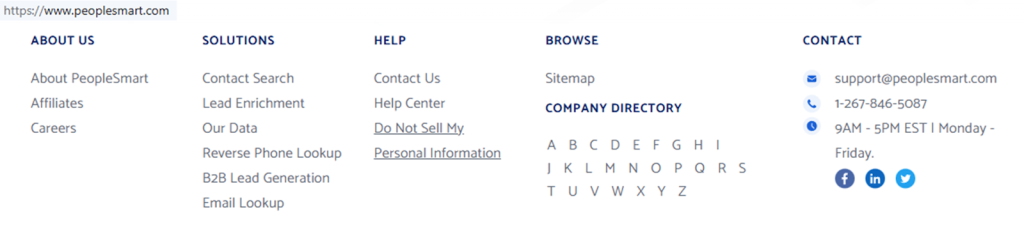
Start on the homepage and scroll to the footer. Look for a privacy link such as “Do Not Sell My Personal Information.” If you see information listed under your name, use your city/state to find the right profile. Before taking screenshots, blur sensitive details, any personal information shown, and any other identifying information. Tip: Open the page in a private window if the form will not load.
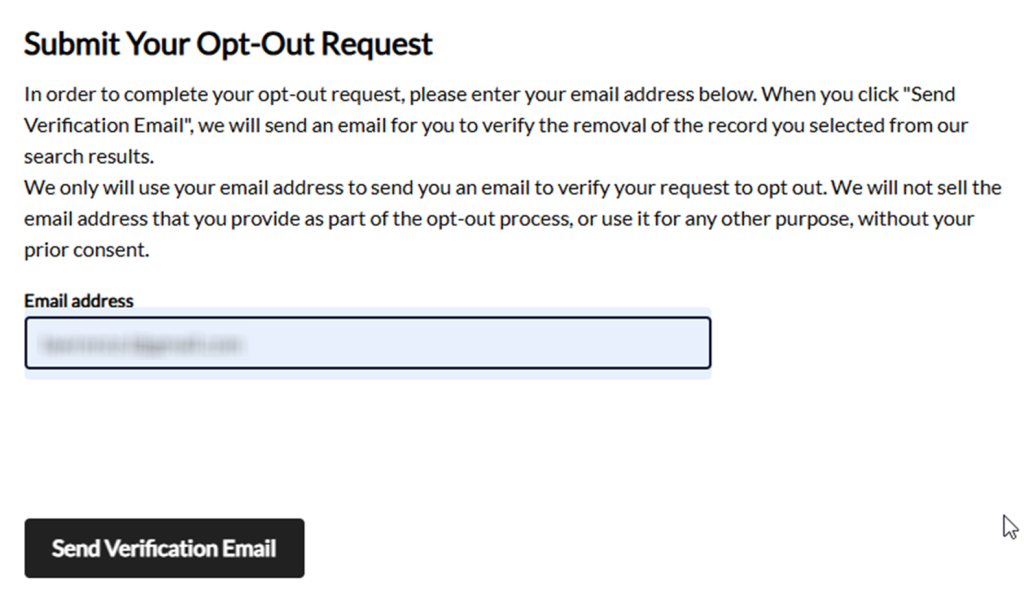
Submit your identifiers (name/address + CAPTCHA)
On the page, enter the identifiers shown in your listing, such as your name and an email address. Add a phone only if the page requests it. Complete the on-page check, then select the submit button to send the opt-out request. If you capture a screen for support, redact sensitive details first. Tip: If fields are missing, try another browser or turn off autofill. Double-check spelling before sending, because small typos can slow matching. Review any suggested matches carefully before selecting one.


Verify via code or link (email/SMS)
After you send the form, an email is sent so you can finish the request. Open your inbox and find the message. Click the link to confirm. Save the email in case you need to follow up. Tip: If nothing arrives, check Spam or Promotions, then resend once from the same page.

Confirm deletion / Do-Not-Sell request
Once the link opens, review what’s shown and proceed to opt by selecting the option that removes the listing. Some pages ask you to approve again before they finalize the change. Take care to blur sensitive details and any personal information if you screenshot the page. Tip: If you see “Do Not Sell/Share,” choose it as well to protect your privacy and security, like with PeopleSmart guidance on limiting reuse. If a checkbox about sharing appears, select it before finishing the request.
Track confirmation & timeline
Keep that email in a folder and note the date you submitted. Recheck your search results in 7–14 days to see whether the profile is gone. If you are still listed on PeopleSmart after that window, send one follow-up opt-out request using the same email. Tip: Store the subject line so you can search your mail quickly. Keep a dated note of what you sent and which record you chose. If the listing is gone, keep the email in case it returns. If it is still visible, repeat the earlier steps with the same details.
Timelines, Verification & What to Expect
Most requests show a brief on-page message right after you send, then you finish through email or SMS. Processing is often 7–14 days, but the opt-out process can vary. PeopleSmart will send you a confirmation email. You may also see a success message. If nothing changes after 14 days, return to the page and try once more. Keep a dated note of what you sent, and check the listing again after one week and again after two weeks.
Edge Cases & Troubleshooting
- No access to the original email/phone: Use a new email, but keep the same personal details that match the record.
- “Record not found”: Try alternate spellings, an old address, or search by phone.
- Image-check or submission errors: Refresh, switch browsers, and try again after clearing cookies.
- Code not arriving: Check Spam, wait 10 minutes, then resend once.
- Form rejects the request by region (EU/UK/CA): Ask for removal through the contact page and explain your location-based privacy request.
- Account deletion vs. public listing removal confusion: If you have a subscription, cancel it separately; removal is about the listing.
- Re-submitting after a failed attempt: Use the same identifiers, keep the new email, and note the date.
Will my data reappear?
Listings can return when data brokers and people search refresh partner feeds, re-crawl the web, or ingest new records from aggregators and resellers. That means your personal information can show up again on sites like PeopleSmart, even after you opt out of PeopleSmart. To reduce harassment and identity theft risks, keep your email, set a 3–6 month reminder to notify you, and act quickly if you want to remove the record again. You can also reduce recurrence by updating old accounts on major platforms and tightening visibility settings, so fewer signals get copied into third-party listings.
Related removals
- BeenVerified
- PeopleLooker
- Spokeo
- Whitepages
- Radaris
- TruthFinder
- FastPeopleSearch
Manual vs Assisted Removal
Manual:
- Pros: More control over what you share and what personal information you provide; you can remove my info on your schedule and keep your own records.
- Cons: Takes time and repeated monitoring; some people don’t have the time; repeating checks can affect your online reputation; you may need to redo the opt-out process if results reappear.
Assisted:
- Pros: Faster workflows, tracking, and recurring checks across many services; helpful when many people search sites need attention; useful if you manage removals for a household and want one place to review progress.
- Cons: Costs money and still depends on each site’s process; you may still need to answer follow-up questions if a match is unclear.
We remove your data for you - faster, verified, trackable.
Discover Which Sites Share Your Private Details—Instantly and Free.
FAQ
Use the search page, match the details, and open the record. If several similar entries appear, open each one in a new tab. Compare the city/state, age range, and known relatives.
If you are routed to a partner portal, follow the same steps and finish the email step. This can happen when brands share the same back-end or use a separate privacy portal. Stay on the page that accepts your request and follow the prompts to finish.
Recheck your email folders, resend once, and verify that you entered the correct email address. Also, search your Spam and Promotions tabs and make sure your mailbox is not full.
Typical timelines are 7–14 days; keep the email and recheck search results. Many sites update within days, but caching and indexing can lag. Check again using a different browser or device.
Provide only the details requested on the form and avoid adding new details. Most forms only need enough to match the record. Use the minimum fields shown, and avoid uploading extra documents unless the page clearly requests them for identity matching.
It can display contact details, addresses, and related records; some details may be outdated. If you see errors, treat them as unverified and focus on the fields that match you. If the service offers a paid report, you do not need to purchase it to proceed with removal steps.
Search using an old city/state, then send the request and follow the code link. Try searching using an older address and alternate name spellings, then choose the correct record and follow the prompts to finish.
Use the contact options linked from the footer and ask about your listing and status. If you do not see a clear help link, look for “Contact” or “Support” in the footer. Provide the record link and the name variations you tried, so support can locate the right entry faster.
If the listing returns, repeat the process and keep prior emails for reference. A good rhythm is every 3–6 months, or sooner if you notice a new entry. Keep prior emails and notes so each repeat is faster, and check a few related sites at the same time.
Many sites expect the person named in the record to submit because of verification steps. If you are helping a family member, have them complete the steps themselves.
Use a step-by-step checklist and repeat requests across other sites. Start with the largest aggregators. Move to smaller sites that reuse the same data. Keep a simple tracker with dates, page links, and outcomes.

Posted by Ava J. Mercer
More People Search Removal Guides
- 411.com Opt Out Guide
- Absolute People Search Opt Out Guide
- Advanced People Search Opt Out Guide
- AnyWho Opt Out Guide
- BeenVerified Opt Out Guide
- CheckPeople Opt Out Guide
- CheckSecrets Opt Out Guide
- CocoFinder Opt Out Guide
- ContactOut Opt Out Guide
- DOBsearch Opt Out Guide
- FamilyTreeNow Opt Out Guide
- FastBackgroundCheck Opt Out Guide
- Find People Fast Opt Out Guide
- FindPeopleSearch Opt Out Guide
- FreePeopleDirectory: Opt Out Guide
- FreePeopleSearch Opt Out Guide
- GladIKnow Opt Out Guide
- GoLookUp Opt Out Guide
- IDCrawl Opt Out Guide
- Information.com Opt Out Guide
- Inforver Opt Out Guide
- Instant Checkmate Opt Out Guide
- InstantPeopleFinder Opt Out Guide
- Kiwi Searches Opt Out Guide
- MyLife Opt Out Guide
- Nuwber Opt Out Guide
- OfficialUSA Opt Out Guide
- PeekYou Opt Out Guide
- PeopleByName Opt Out Guide
- PeopleFinder Opt Out Guide
- PeopleFinders Opt Out Guide
- PeopleLooker Opt Out Guide
- PeopleLookup Opt Out Guide
- PeopleSearch Opt Out Guide
- PeopleSearchNow Opt Out Guide
- PeopleSmart Opt Out Guide
- PeopleWhiz Opt Out Guide
- PersonSearchers Opt Out Guide
- Persopo Opt Out Guide
- PrivateEye Opt Out Guide
- PrivateRecords Opt Out Guide
- Public Data Check Opt Out Guide
- Public Data USA Opt Out Guide
- Public Records 360 Opt Out Guide
- PublicRecordsNow Opt Out Guide
- Quick People Trace Opt Out Guide
- Radaris Opt Out Guide
- RealPeopleSearch Opt Out Guide
- SearchPeopleFREE Opt Out Guide
- SearchUSAPeople Opt Out Guide
- Semcasting Opt Out Guide
- Social Catfish Opt Out Guide
- Spokeo Opt Out Guide
- ThatsThem Opt Out Guide
- TruePeopleSearch Opt Out Guide
- TruthFinder Opt Out Guide
- UnMask Opt Out Guide
- US Search Opt Out Guide
- USA People Search Opt Out Guide
- USATrace Opt Out Guide
- Veripages Opt Out Guide
- Whitepages Opt Out Guide
- Wyty Opt Out Guide
- ZabaSearch Opt Out Guide