Opt Out Guides
PublicRecordsNow Opt Out Guide
Before You Opt Out of PublicRecordsNow, Check Your Exposure
Privacy Writer
A. J. MercerAva J. Mercer
Updated
Read
5 min
Before You Opt Out of PublicRecordsNow, Check Your Exposure
People search sites can expose your name, address, and phone numbers, creating a real privacy risk if strangers look you up. These pages often show public records plus extra facts (like reachability matches, relatives, and past locations) from records and commercial sources. Remove your personal information so it’s less accessible on the Internet and can reduce identity theft risk.
How to opt out of PublicRecordsNow
Open the official opt-out page (or the Contact Us page), enter an email address and name, complete CAPTCHA, then verify via a link/code. Typical processing is 7–14 days.
Checklist:
- Open the official opt-out form
- Enter identifiers (inbox/phone)
- Complete CAPTCHA/verification
- Verify via code/link
- Save the email receipt
- Set a reminder to opt out again
Find out if your private details were exposed
PublicRecordsNow – Quick Facts
| Parameter | Value |
| Domain | publicrecordsnow.com |
| Data Types | reachability info, past locations, possible social identifiers |
| Opt-out Methods | web form/mail |
| Verification | link or code, plus on-page receipt |
| Typical Response Time | 7–14 days |
| Re-listing Risk | medium |
This company runs a public-records database that can compile public records and commercial source information into one record and may route more info to a related data broker. Check the privacy policy for the stated process to request takedown or delete/suppress display; this supports data privacy and data rights.
Common data you may find:
- Names (and known aliases)
- Phone numbers
- Email matches
- Current and past address
- Age range/year of birth
- Relatives/household links
- Property records
- Court record references
Step-by-Step Guide
Open the official opt-out form
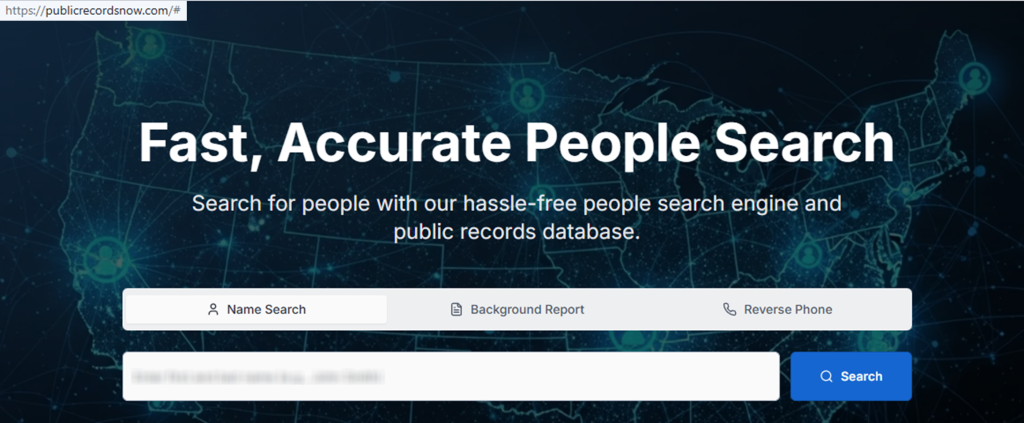
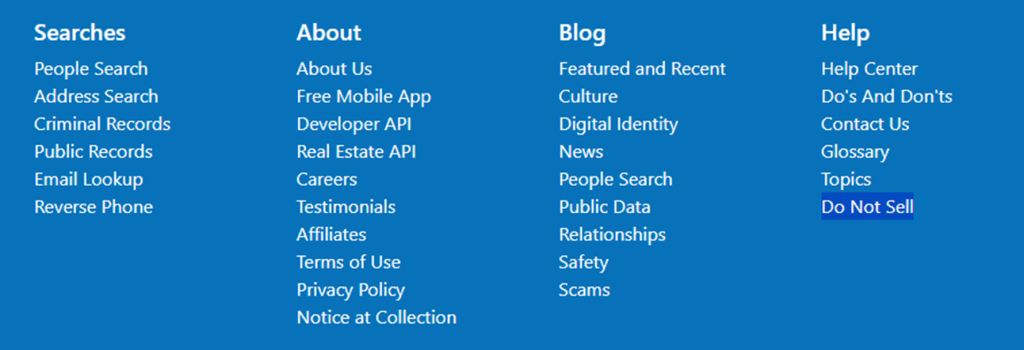
Start by scanning for your record. Get your data and review your search results. Then, open the “Do Not Sell” page in a new tab. If you save screenshots, blur sensitive information first (for example, full address). Tip: Keep the page open so you can copy the record URL if you need it later.

Submit your identifiers (email/name + CAPTCHA)
Enter only the required fields to match the record. Complete the CAPTCHA and press the primary button. Avoid adding extra details in free-text boxes; it can create more hassle than it solves. Tip: If the page errors, refresh once and try again in a few minutes.
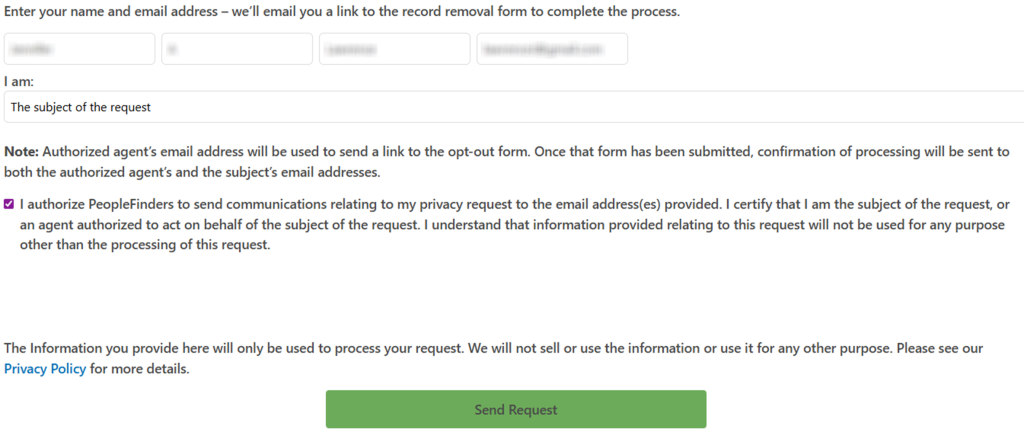
Verify via code or link (email/SMS)
Check your inbox for a message with a code or link. Use it to verify, then return to the page to finish. Keep the receipt message so you can prove the step was completed. Tip: Check Spam/Junk, and if needed, resend once after 30 minutes.

Confirm deletion / Do-Not-Sell request
After verification, follow the final prompt to delete the record from display, and use any Do-Not-Sell choice if it is offered. Keep the on-page receipt. Tip: If you need to send a follow-up later, reference the record URL and the date you opted out.
Track confirmation & timeline
Create a small folder with the receipt, the record URL, and a dated screenshot so you can track progress. Processing often completes within 7–14 days, depending on database refresh timing. Tip: If the record is still visible after that, request via mail using the site’s help mailbox and include the record URL; label it clearly as a removal request.
Timelines, Verification & What to Expect
After you complete the form, you may see an on-page receipt right away and later get a message in your inbox. Verification is usually a link or code sent to your inbox, and sometimes by SMS. Processing commonly completes within 7–14 days, but timing varies with refresh cycles. If nothing changes after 14 days, a user can try the same form one more time, then follow up through the contact page with the record URL and the date they opted out. If the record still won’t change, ask to use the mail path and include the same identifiers; avoid adding extra details. Keep your receipt screenshots so you can compare before/after.
Edge Cases & Troubleshooting
- No access to the original inbox: use mail and include a redacted ID plus the record URL.
- “Record not found”: broaden your search and try nicknames or initials.
- CAPTCHA errors: clear cookies, disable blockers, switch browsers, and try again later.
- Code not arriving: check Spam/Junk, wait 30 minutes, then resend once.
- Region limits (EU/UK/CA): ask for options under local law and the site’s stated process.
- Paid account vs record confusion: cancel any subscription separately; removing a record is different.
- Re-trying after failure: wait 24 hours, then repeat the same method with the same fields; if you still can’t locate it, ask support.
Will my data reappear?
A record can return when aggregators refresh from upstream public records, partner feeds, or another broker update that republishes the same personal data. That means information may show up again after you remove it, especially after moves or new numbers. To reduce recurrence, monitor your name every 3–6 months, keep receipts, and opt out again quickly if the listing returns. For broader coverage, opt out of public records on related sites, then check peoplefinders.com as another related site. This is a conservative way to get your personal information removed because re-listing risk is often medium across reseller networks.
Manual vs Assisted Removal
Manual:
Pros
- Control, less sharing, and you can use an alternative inbox address. You also learn the procedure and can repeat it.
Cons
- Time, repeat checks, and you must keep receipts to protect your privacy.
Assisted:
Pros
- Speed, verified handling, tracking dashboards, and recurring checks that automate updates across multiple broker pages.
Cons
- Fees, you still need accurate identifiers, and it can feel like extra work.
We remove your data for you - faster, verified, trackable.
Discover Which Sites Share Your Private Details—Instantly and Free.
FAQ
The easiest route is a dedicated opt-out page, with a backup path from the site’s support form. If you can’t find it, include the profile URL, so support can find it.
Some pages preview info and route “view detail” clicks to PeopleFinders. If you want less exposure, opt out of the preview record and then opt out there, too.
Check Spam/Junk, wait up to 30 minutes, then resend once. If it still fails, try a different inbox you control to ensure you can get emails.
Re-listing can happen when upstream sources refresh or other brokers republish the same data. Keep receipts and opt out again if you see it return.
Some are legitimate. Review the company terms, what they automate, and start with manual steps so you understand what happens on your behalf.
Often, it’s a name, current/past locations, phone, possible contact matches, and links to related records. Use the widget above to compare what is visible before you start.
As a rule, it takes 7–14 days, but timing varies by refresh cycles. Keep your receipt, then re-check after the window before you try again.
There is a dedicated page (Do Not Sell).
No. Account actions affect paid access; record removal affects public display. You may need both if you paid for reports.
Keep your receipt, record URL, and dates, then use the support form or mail method for a single follow-up.

Posted by Ava J. Mercer
More People Search Removal Guides
- 411.com Opt Out Guide
- Absolute People Search Opt Out Guide
- Advanced People Search Opt Out Guide
- AnyWho Opt Out Guide
- BeenVerified Opt Out Guide
- CheckPeople Opt Out Guide
- CheckSecrets Opt Out Guide
- CocoFinder Opt Out Guide
- ContactOut Opt Out Guide
- DOBsearch Opt Out Guide
- FamilyTreeNow Opt Out Guide
- FastBackgroundCheck Opt Out Guide
- Find People Fast Opt Out Guide
- FindPeopleSearch Opt Out Guide
- FreePeopleDirectory: Opt Out Guide
- FreePeopleSearch Opt Out Guide
- GladIKnow Opt Out Guide
- GoLookUp Opt Out Guide
- IDCrawl Opt Out Guide
- Information.com Opt Out Guide
- Inforver Opt Out Guide
- Instant Checkmate Opt Out Guide
- InstantPeopleFinder Opt Out Guide
- Kiwi Searches Opt Out Guide
- MyLife Opt Out Guide
- Nuwber Opt Out Guide
- OfficialUSA Opt Out Guide
- PeekYou Opt Out Guide
- PeopleByName Opt Out Guide
- PeopleFinder Opt Out Guide
- PeopleFinders Opt Out Guide
- PeopleLooker Opt Out Guide
- PeopleLookup Opt Out Guide
- PeopleSearch Opt Out Guide
- PeopleSearchNow Opt Out Guide
- PeopleSmart Opt Out Guide
- PeopleWhiz Opt Out Guide
- PersonSearchers Opt Out Guide
- Persopo Opt Out Guide
- PrivateEye Opt Out Guide
- PrivateRecords Opt Out Guide
- Public Data Check Opt Out Guide
- Public Data USA Opt Out Guide
- Public Records 360 Opt Out Guide
- PublicRecordsNow Opt Out Guide
- Quick People Trace Opt Out Guide
- Radaris Opt Out Guide
- RealPeopleSearch Opt Out Guide
- SearchPeopleFREE Opt Out Guide
- SearchUSAPeople Opt Out Guide
- Semcasting Opt Out Guide
- Social Catfish Opt Out Guide
- Spokeo Opt Out Guide
- ThatsThem Opt Out Guide
- TruePeopleSearch Opt Out Guide
- TruthFinder Opt Out Guide
- UnMask Opt Out Guide
- US Search Opt Out Guide
- USA People Search Opt Out Guide
- USATrace Opt Out Guide
- Veripages Opt Out Guide
- Whitepages Opt Out Guide
- Wyty Opt Out Guide
- ZabaSearch Opt Out Guide