Opt Out Guides
SearchSystems Opt Out Guide
Before You Opt Out of SearchSystems, Check Your Exposure
Privacy Writer
A. J. MercerAva J. Mercer
Updated
Read
5 min
Before You Opt Out of SearchSystems, Check Your Exposure
SearchSystems can expose a name, address, and phone if a linked source or listing is visible, which can raise unwanted contact and identity-matching risks. The service describes itself as a directory that points users to official government databases. Ut does not host or control those government portals.
How to opt out of SearchSystems
To complete a SearchSystems opt-out, open the homepage and search for your listing. The flow leads you to the BeenVerified website. Submit the requested contact details and confirm through any code, link, or on-screen message. Processing is usually best tracked over 7–14 days.
Checklist:
- Search for your record
- Match your listing
- Submit your email
- Complete the CAPTCHA
- Save the confirmation message
- Set a reminder to re-opt-out
Find out if your private details were exposed
SearchSystems – Quick Facts
| Parameter | Value |
| Domain | searchsystems.net |
| Data Types | Contact details, addresses, court, property, vital, business, and government-source links |
| Opt-out Methods | Contact form or privacy request route |
| Identity Verification | Confirmation message review or follow-up questions |
| Typical Response Time | 7–14 days |
| Re-listing Risk | Medium |
SearchSystems is a public records directory. It links to government databases across states and counties, while its policy says it does not store, sell, or compile profiles itself. Requests may need to be handled with the linked source.
Common data you may see:
- Names and known aliases
- Phone numbers
- Current and past addresses
- Age range or year of birth
- Relatives or household links
- Property and real-estate entries
- Court, lien, or bankruptcy references
- Business registrations and licenses
Step-by-Step Guide
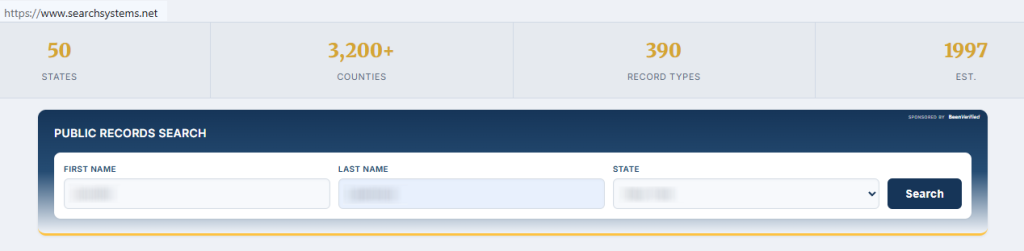
Search for your record
Start on the main page. Enter your first and last name, then narrow by location or category. Use fields and filters carefully, because many matches can share a similar name. Blur personal info in screenshots before saving them.
Match the listing
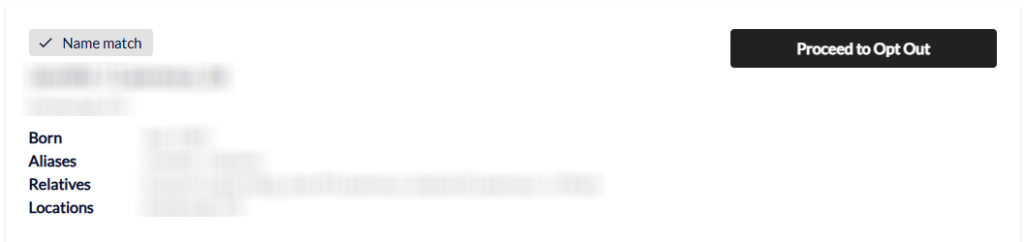
The opt-out flow leads to the BeenVerified site. Open likely results and compare city, age range, relatives, or address clues. Do not rely on one match alone. Copy the listing URL or source name, then keep a clean screenshot for your notes.
Submit your email
Use the contact route and enter the requested details. Include your email and complete any CAPTCHA. Save the on-screen confirmation.
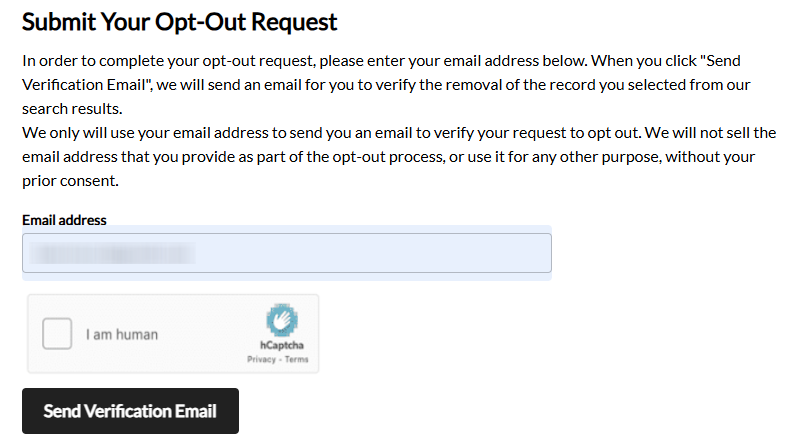
Confirm deletion
Open the verification message, then click the confirmation link or enter the code. Check the Spam and Promotions folders if nothing arrives. If the form asks for more details, reply only with what is needed.
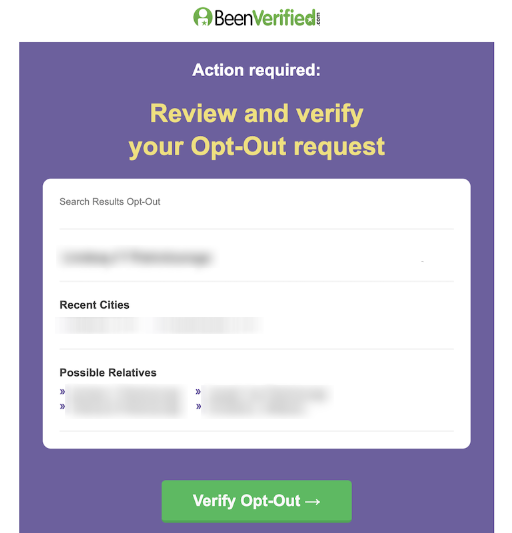
Track confirmation & timeline
Save the request date, URL, and final message. Review the same listing after 7–14 days. If it still appears, send one follow-up through the same contact path and include your prior confirmation.
Timelines, Verification & What to Expect
Most requests should be monitored for 7–14 days. Confirmation may appear on-screen or arrive in your inbox. If no response appears after 14 days, use the official contact link, reference your saved confirmation, and resubmit once.
Edge Cases & Troubleshooting
- No access to the original contact channel: use a current contact method and explain that the old channel is unavailable.
- “Record not found”: try alternate spellings, past cities, and initials, then save a note that no matching entry appeared.
- CAPTCHA or submission errors: refresh once, disable browser extensions, or try another browser.
- Verification code not arriving: check Spam, Promotions, and blocked senders before sending a new request.
- Form rejects the request by region: use the contact form and mention EU, UK, or CA rights without adding legal claims.
- Account deletion vs. public listing removal confusion: an account action may not suppress linked public results.
- Re-submitting after a failed attempt: wait 24 hours, then submit once with the same URL and notes.
Will my data reappear?
Listings can return when aggregators, partner feeds, or government updates refresh older entries. Keep confirmation messages and set a 3–6 month reminder. Resubmit quickly if the same entry returns. Also, check related removals, because one data broker can mirror details from another service.
Manual vs Assisted Removal
Manual:
Pros
- You control each request, see every form, and choose what to share.
Cons
- It takes time, requires repeat monitoring, and can be hard when sources change.
Assisted:
Pros
- A service can automate recurring checks, verify outcomes, and show a tracking dashboard.
Cons
- You may need a paid plan, and some government or agency sources still require direct action.
We remove your data for you - faster, verified, trackable.
Discover Which Sites Share Your Private Details—Instantly and Free.
FAQ
Use the official request or contact path, identify the matching listing, submit the requested details, and save any confirmation for follow-up.
Try prior cities, initials, and alternate spellings. If nothing appears, save a note and repeat the review later.
Linked sources can refresh from public or commercial feeds. Keep confirmations, resubmit, and review related removals every 3–6 months.
Track the request for 7–14 days. If there is no update, use the official contact route and reference your saved confirmation.
Use the official request or contact links in the footer. Avoid third-party forms unless you trust the provider.
Its policy says it does not store personal data, compile profiles, or sell details, and instead links to government portals.
Use the account or billing contact route, include your receipt details, and ask support to close the subscription.
Save the listing URL, submission date, confirmation message, and any support reply. Redact sensitive details before sharing screenshots.
Repeat it every 3–6 months, or sooner if the same listing returns after a source refresh.
Contact the issuing agency directly, because SearchSystems says it cannot retrieve, modify, or delete government portal entries.

Posted by Ava J. Mercer
More Public & Property Records Removal Guides
- BlockShopper Opt Out Guide
- BusinessProfiles Opt Out Guide
- City-Data Opt Out Guide
- ClustrMaps Opt Out Guide
- Florida Residents Directory Opt Out Guide
- Homemetry Opt Out Guide
- Michigan Residents Database Opt Out Guide
- MineralHolders Opt Out Guide
- My Health Record Opt Out Guide
- Neighbor.Report Opt Out Guide
- NeighborWho Opt Out Guide
- NJ Parcels Opt Out Guide
- NJPropertyRecords Opt Out Guide
- North Carolina Resident Database Opt Out Guide
- Ohio Residents Database Opt Out Guide
- OnlineSearches Opt Out Guide
- Rehold Opt Out Guide
- SearchSystems Opt Out Guide
- US Records Opt Out Guide
- VoterRecords Opt Out Guide