Opt Out Guides
GovWarrantSearch Opt Out Guide
Before You Opt Out of GovWarrantSearch, Check Your Exposure
Privacy Writer
A. J. MercerAva J. Mercer
Updated
Read
5 min
Before You Opt Out of GovWarrantSearch, Check Your Exposure
If a listing on govwarrantsearch.org shows your name, address, and mobile number online, it can raise privacy risk and make identity theft easier. This people search page may display personal information pulled from public record databases and commercial sources, then aggregate it into one profile with basic history fields. It may also list relatives, emails, and property hints in one place. This step-by-step guide shows screenshot notes, official links, and a clear timeline for how to remove your sensitive data from the site.
How to opt out of GovWarrantSearch
Open the official opt-out page, enter the requested identifiers, complete verification, then confirm via a code or link; this process usually takes 7–14 days for a result; save the confirmation email.
Checklist:
- Open the official form
- Enter identifiers (Email/mobile)
- Complete CAPTCHA/verification
- Confirm via link
- Save the confirmation email
- Set a reminder to recheck
Find out if your private details were exposed
GovWarrantSearch – Quick Facts
| Parameter | Value |
| Domain | govwarrantsearch.org |
| Data Types | contacts, addresses, personal data, possible identifiers |
| Opt-out Methods | web form/email (if listed)/mail (if listed) |
| Verification | confirmation email |
| Typical Response Time | 7–14 days |
| Re-listing Risk | medium |
This directory helps users find public record pages, including court entries and related items. The company may use public records and commercial source feeds to display data publicly in one place, similar to a data broker. If you find a listing, use the opt-out method to request removal.
Common data you may find:
- Names and known aliases
- Mobile numbers
- Email addresses
- Current and past address lines
- Relatives or household links
- Public profiles on LinkedIn
- Property records (if available)
- Court filings (if available)
Step-by-Step Guide
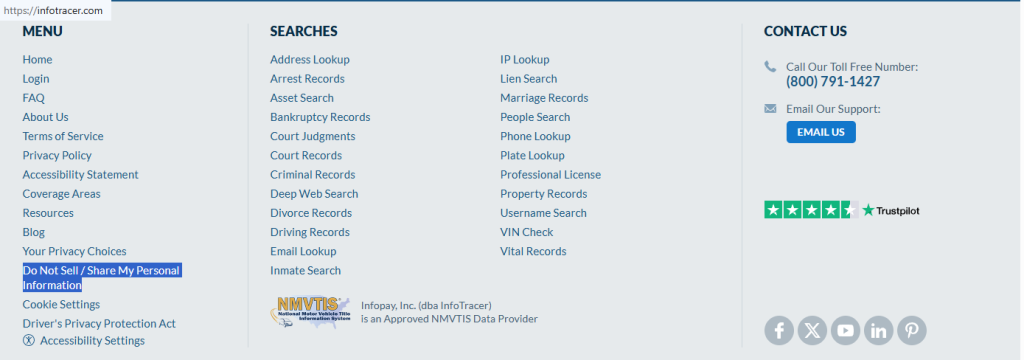
Open the official opt-out form
Use the footer links (“Do Not Sell/Share”) on the website, then select a button like “Submit Request.” If the form isn’t available, use the contact link shown there and paste the listing URL. Redact personal information in screenshots. Tip: Ensure pop-up blockers are off.
Submit your identifiers (email/phone + CAPTCHA)
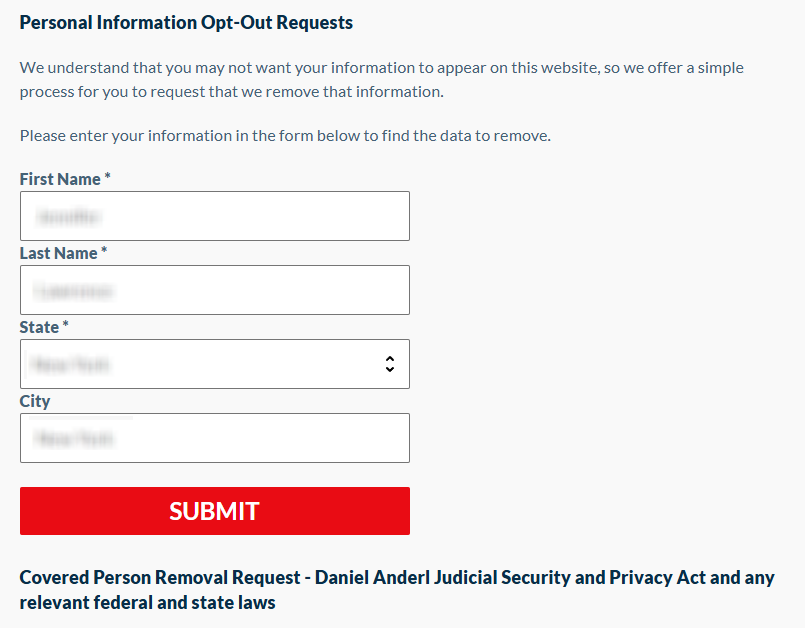
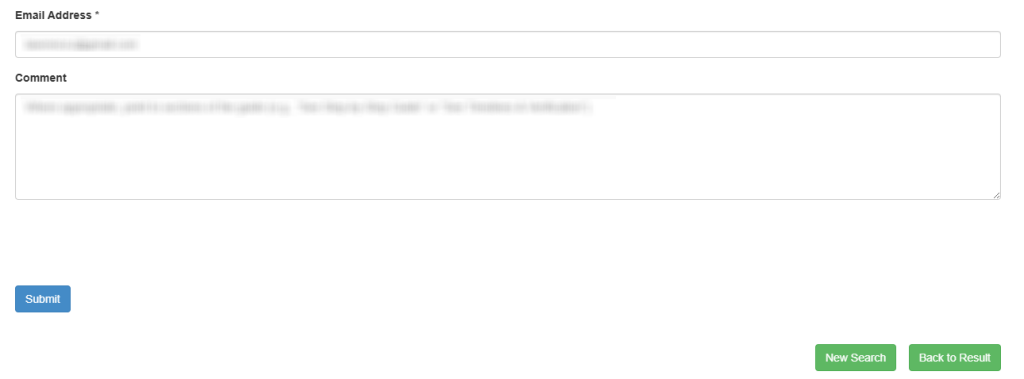
Enter the full name and state. Then, complete the CAPTCHA and submit. Choose the corresponding record and click “Remove Data.” After that, enter your email and any comment. Provide only what the service asks for. Blur identifiers in screenshots. Tip: If you get an error, refresh once and try again.

Verify via code or link (email/SMS)
Check for a verification link in your email, then confirm right away. If nothing arrives, check Spam/Promotions and request a new code. Tip: Save the message so you can reference it if you follow up.

Confirm deletion / Do-Not-Sell request
After you verify, finish the request on the confirmation screen and save any reference number. If you’re redirected to InfoTracer, repeat the same steps there. A data broker can show the same record in more than one place. Tip: Keep a redacted screenshot of the final screen for your records.
Track confirmation & timeline
Save the confirmation email and note the date you submitted. Check the same URL after 7–14 days to see whether the result changed. If it still shows, resubmit once and include the prior confirmation. Tip: Set a 3–6 month reminder for repeat removal.
Timelines, Verification & What to Expect
For opting out of govwarrantsearch.org, you’ll usually get an on-page message plus a confirmation email. Typical handling is 7–14 days. However, it can take longer if updates run in batches. If nothing changes after 14 days, use the contact method shown on the policy page. Keep the confirmation email and your saved listing URL so you can follow up with clear details.
Edge Cases & Troubleshooting
- No access to the original email: ask for an alternate verification path.
- “Record not found”: adjust spelling, add a state filter, and try again, then copy the listing URL.
- CAPTCHA or submission errors: refresh, switch browsers, and pause VPN/ad blockers.
- Verification code not arriving: check Spam and request a new code.
- Form rejects the request by region (EU/UK/CA): use the regional contact path and limit what you share.
- Account deletion vs. public listing removal confusion: ending access does not remove a public listing.
Will my data reappear?
A listing can return when a data broker refreshes its index, receives updates, or re-aggregates records from a new source. Partner feeds and resellers can republish the same details, even after a request is completed. Keeping a simple log of dates and confirmation emails helps you respond fast. Set a 3–6 month reminder, and submit again quickly if it comes back. If you spot the record back, take action quickly and keep the new confirmation. Next, remove listings from other data broker pages that display the same personal data.
Related removals
- Spokeo
- BeenVerified
- Intelius
- WhitePages
- TruthFinder
- FastPeopleSearch
Manual vs Assisted Removal
Manual:
- Pros: More control over each request and what personal information you share; no money spent to start; easy to keep your own log and protect your routine.
- Cons: Time-consuming across each result; you must do repeat checks without continuous monitoring; higher chance of missing a mirror listing.
Assisted:
- Pros: Faster, extensive coverage across a data broker list, with status tracking; help with verification and follow-ups; can automate recurring checks to safeguard your data.
- Cons: Less hands-on control; requires sharing identifiers with a removal service.
We remove your data for you - faster, verified, trackable.
Discover Which Sites Share Your Private Details—Instantly and Free.
FAQ
Some checks surface people-search listings. Save the URL, submit a request, and keep the confirmation email. Re-check in 7–14 days for the updated result.
Use the form, verify by code/link, and save the confirmation. Check the listing again later; if it remains, resubmit once.
You may see prompts to purchase a report, but removal uses the request path. Submit the form, verify, and keep your confirmation.
Open the listing, copy the URL, and note what’s shown. Share only required fields, and redact screenshots.
Use the footer Do Not Sell/Share link. If it’s missing, use the contact method listed there.
Most requests finish in 7–14 days after verification. If nothing changes after 14 days, contact the service and resubmit once.
Usually, the listing URL plus name, state, and an email or phone field for verification. Match the listing text and save your confirmation email.
These pages typically use public records plus commercial sources, then aggregate details into a profile. Treat it as a starting point and verify key items elsewhere.
Remove the listing first, then review credit reports and consider a freeze. Keep the confirmation email for reference.
Set a 3–6 month reminder and repeat the process if the listing returns. Keeping confirmations makes follow-up easier.
Use account settings to end billing, then still submit a listing removal request if your public profile remains.

Posted by Ava J. Mercer
More Background & Criminal Removal Guides
- AdvancedBackgroundChecks Opt Out Guide
- Affordable Background Checks Opt Out Guide
- ArrestFacts Opt Out Guide
- Background Check Gateway Opt Out Guide
- BackgroundCheckers Opt Out Guide
- BackgroundChecks.com Opt Out Guide
- CyberBackgroundChecks Opt Out Guide
- EasyBackgroundChecks Opt Out Guide
- GovernmentRegistry Opt Out Guide
- GovWarrantSearch Opt Out Guide
- InfoTracer Opt Out Guide
- JailBase Opt Out Guide
- LocatePeople Opt Out Guide
- MugshotLook Opt Out Guide
- Mugshots Opt Out Guide
- National Public Data Opt Out Guide
- Public Information Services Opt Out Guide
- Search Public Records Opt Out Guide
- SearchQuarry Opt Out Guide
- SmartBackgroundChecks Opt Out Guide
- SpyFly Opt Out Guide
- TruthRecord Opt Out Guide