
Privacy Guides
How to Delete ChatGPT History and Clear Saved Memory
To delete ChatGPT history and clear saved memory, you need to remove your conversations and clear Memory separately. Deleting a chat does not automatically remove saved memories, Library files, project data, shared links, custom instructions, or connected app data. For a full cleanup, review each of these data layers individually.
See where your personal data appears online
Privacy Writer
A. J. MercerAva J. Mercer
Updated
Read
5 min
See where your personal data appears online
What Does ChatGPT Store About You?
The Chat and File Retention Policies in ChatGPT say ordinary chats remain until deleted, while Library files can follow a separate lifecycle. ChatGPT saves or can reference several kinds of user data:
- Conversation transcripts and uploaded content.
- AI memory and context from past chats.
- PDFs, images, and other Library files.
- Project chats, files, and instructions.
- Custom instructions and shared links.
- Information available through connected apps.
These layers follow different data retention and deletion rules.
Why an Empty Chat Sidebar Does Not Mean Your Account Is Clean
A blank history sidebar only means no regular conversations are visible there. Archived conversations can remain, while AI memory, files, projects, instructions, links, or connected sources may still exist.
For privacy reasons, the sidebar is only one checkpoint; account history can remain elsewhere.
Chat History vs. Saved Memory vs. Reference Chat History
The Memory FAQ explains that memory can draw context from chats, files, and connected apps. To remove personal information fully, treat these three mechanisms separately.
| Feature | What It Contains | How It Is Created | How Long It Persists | How to Remove It | Does Deleting a Chat Remove It? |
| Chat history | Conversation transcripts | User conversation | Until deleted | Delete the chat | Yes |
| Memory summary / saved memory | Remembered facts and synthesized context | AI memory mechanism | Until edited, cleared, or turned off | Personalization > Memory | No |
| Reference chat history | Context from earlier conversations | Historical reference | While sources remain available in memory | Remove source chats and adjust Memory | Not necessarily |
ClearNym addresses exposure outside ChatGPT. It covers 262+ data-broker and people-search sites.
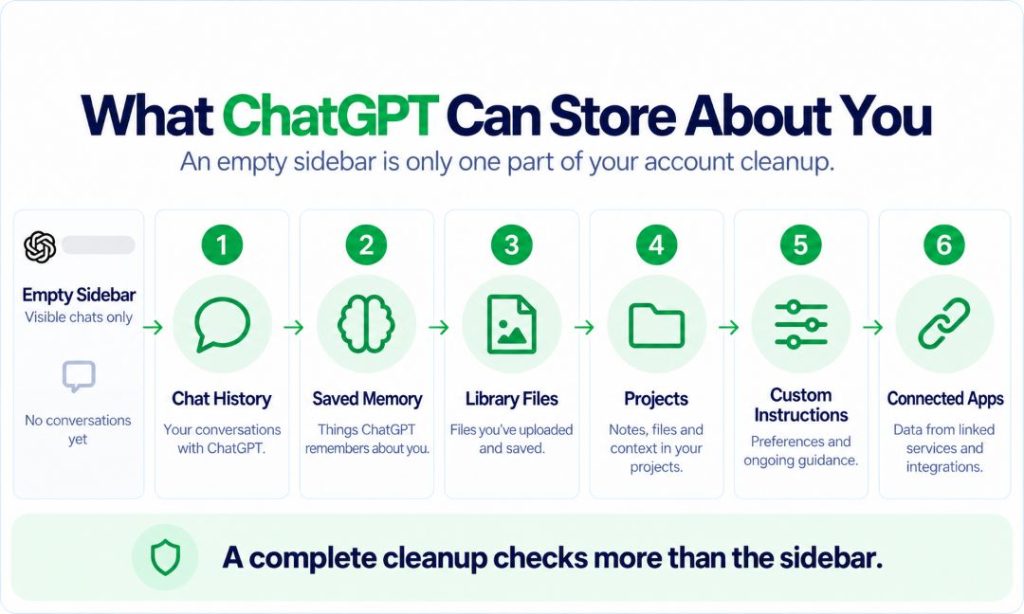
The infographic groups ChatGPT cleanup into six practical layers: chat history, memory, Library files, projects, custom instructions, and connected apps. It also highlights three personalization mechanisms – chat history, memory, and reference chat history – to show why an empty sidebar represents only part of a full cleanup.
Delete vs. Archive in ChatGPT: Which Should You Choose?
For archive vs delete ChatGPT decisions, use Archive to organize conversations and Delete when permanent removal is the goal. For step-by-step instructions, see how to delete and archive chats in ChatGPT. Archived chats remain in your account under normal retention rules.
| Action | Removes From Sidebar | Remains in Account | Recoverable | Starts Deletion Process | Best For | Main Risk |
| Delete | Yes | During processing, subject to exceptions | No | Yes | Privacy cleanup | Permanent loss |
| Archive | Yes | Yes | Yes | No | Organization | False sense of deletion |
Use Archive for organization. If you need to delete a conversation containing confidential information, use Delete.
Before Deleting Anything: Export Your ChatGPT Data
Exporting is a way to keep your data before deletion. The Exporting Your ChatGPT History and Data guide says delivery can take up to 7 days, and the link expires after 24 hours.
Instead of treating the export as another cleanup checklist, use it as a snapshot of your account before anything is removed. Request it through Settings > Data Controls > Export Data, then download the ZIP when the email or SMS arrives and review it for anything you may want later. This is especially useful if you are about to clear a large number of conversations or permanently delete the account.
How to Delete a Single ChatGPT Conversation (Web & Mobile)
On the web version, here’s how to delete a single chat:
- Find the conversation in the sidebar.
- Open the three dots beside its title.
- Choose the delete option.
- Confirm deletion.
Once you click delete, the individual chat disappears from visible history and cannot be recovered through normal controls. If by deleting ChatGPT messages you mean removing one message from an otherwise retained conversation, ChatGPT does not offer a standard message-level delete control. You need to remove the entire conversation.
If you’re looking for how to delete ChatGPT search history, note that ChatGPT conversation history is separate from your browser’s browsing or search history. Use these controls to clear your history.
How to Delete ChatGPT Conversations on iPhone and Android
To delete a conversation in ChatGPT iOS app, open the conversation list. Use the press-and-hold menu described in the official iOS deletion guide. The Android deletion guide describes a similar process.
- Open the app menu.
- Locate the conversation.
- Press and hold its title.
- Tap Delete.
- Confirm if prompted.
Menu placement varies by version of ChatGPT, but deletion syncs across devices.
How to Delete All ChatGPT Conversations at Once
To bulk delete ChatGPT conversations, open Settings > Data Controls and choose delete all chats. This removes every conversation in bulk instead of requiring you to delete each one individually.
Before mass deletion, review chats worth exporting and check projects separately.
Does Deleting a Chat Remove the Conversation from OpenAI’s Servers?
Not instantly. The Chat and File Retention Policies say deleting a conversation removes it from the account immediately and schedules permanent deletion from OpenAI systems, subject to de-identification and legal or security exceptions. For the user, the important distinction is between visible removal and backend deletion. Once deleted, the chat should disappear from normal account history right away, but that does not mean every server-side copy vanishes at the same moment. OpenAI describes deletion as a process that can continue for up to 30 days, with limited exceptions where some data may be retained longer.
Why Can ChatGPT Remember a Deleted Conversation?
AI memory is separate from the transcript in history. Conversations may disappear while remembered context remains. The Memory FAQ says a remembered fact can remain after the original chat is deleted, and the same detail may exist in another chat, file, project, custom instruction, or connected app.
How to Clear All Saved Memory
ChatGPT now uses a Memory summary, although some accounts may still show the older saved-memory interface. Use these steps:
- Open Settings > Personalization > Memory summary > Manage.
- Edit or remove a specific memory if you only want to delete one detail.
- Use Delete and turn off memory to clear the summary and disable memory.
- Remove old conversations, archived chats, files, or projects containing the same fact.
- Disconnect apps that could reintroduce the same information.
The Memory FAQ says logs of deleted saved memories may remain for up to 30 days for safety and debugging.
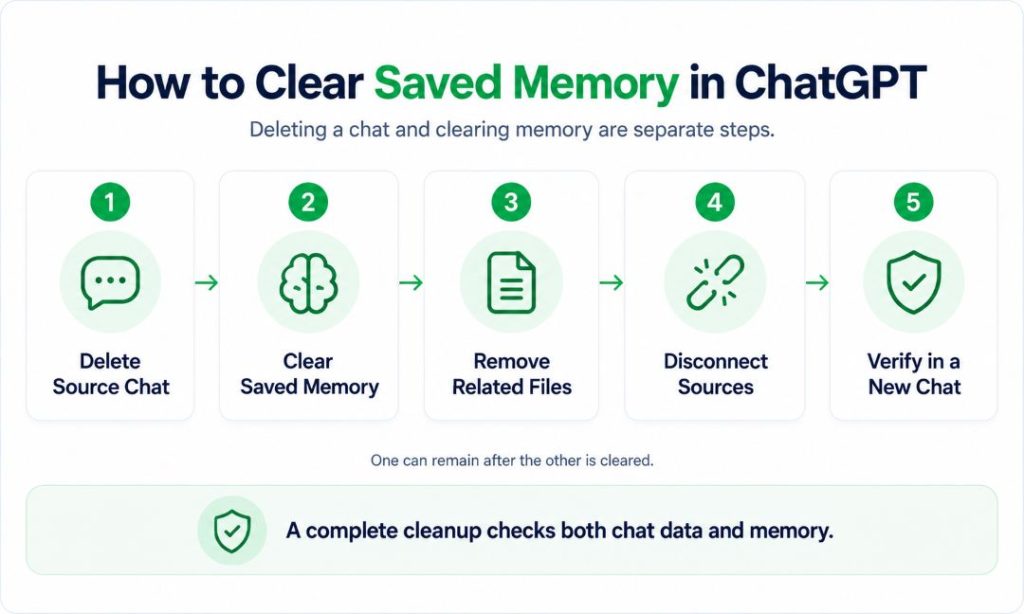
The infographic shows five actions: delete the source chat, clear memory, remove related files, disconnect sources, and verify in a new chat. Its key message is that conversation data and AI memory follow two separate cleanup paths.
How to Delete PDFs, Images, and Other ChatGPT Files
Library content requires separate cleanup because deleting a chat does not delete files saved to Library.
How to delete files from ChatGPT:
- Open Library.
- Select the saved file.
- Choose Delete or the trash icon.
- If Recently deleted is available, use it to restore the file or delete it permanently.
Use the same process to delete images from ChatGPT library.
How to Delete ChatGPT Project Data
Projects can contain chats, files, instructions, and related context. If you delete a project in ChatGPT, its contents are permanently removed, and you can’t undo the action.
Open the project menu and choose Delete project. If you only need partial cleanup, remove conversations or files instead.
How to Delete ChatGPT Shared Links
A shared link can remain another way to access a conversation. The ChatGPT Shared Links guide says you can manage links under Settings > Data Controls > Shared links > Manage.
Choose the action that matches your goal:
- Delete one shared link when only one conversation should stop being accessible.
- Choose Delete all shared links when every active link should be revoked.
Deleting the link prevents future access through that URL. However, it cannot erase copies another person has already saved.
How to Verify a Shared Link Is No Longer Accessible
Copy the URL before revoking it, then test it in a signed-out private window. The page should no longer load, although recipient-owned copies remain outside your control. For a stronger check, also confirm that the link no longer appears under Settings > Data Controls > Shared links > Manage. Using both checks matters because they verify two different things: the management page confirms that the share was revoked from your account, while the private-window test confirms that the old public URL is no longer accessible.
How to Remove Personal Data from Custom Instructions
Custom Instructions can also retain personal details that influence future responses. The Memory FAQ distinguishes them from memory: they provide direct guidance about what ChatGPT should know or how it should respond.
Open Settings > Personalization > Custom Instructions and remove details you no longer want ChatGPT to use in future conversations. A prompt containing the same information in an earlier transcript remains part of that chat, so delete older conversations separately when necessary.
How to Delete Data from Connected Apps and External Sources
Concerned about ChatGPT bank account access? Access depends on provider permissions and workspace settings.
For complete cleanup:
- Review the app and permissions you granted.
- Disconnect it under Settings > Apps or Plugins.
- Delete chats, files, and memory containing imported information.
- Use the provider’s own privacy controls if source data also needs deletion.
Disconnecting stops future access but does not erase prior content held inside ChatGPT. ClearNym complements this cleanup by helping identify and remove personal records from people-search and data-broker sites.
What Does “Improve the Model for Everyone” Actually Do?
The Data Controls FAQ says this controls whether eligible consumer conversations can help improve models; turning it off does not erase history.
Three points matter:
- New conversations remain in history but are not used to train ChatGPT when the setting is off.
- The preference syncs across desktop and mobile.
- Temporary Chat content is not used for model training while it remains temporary.
To disable training, open your profile icon, go to Settings > Data Controls, and turn off Improve the model for everyone. This changes training across eligible future conversations rather than deleting existing history.
The term AI trainers is often used too broadly; model training and safety-related human review are separate processes. The same account-level deletion controls apply to conversations created with GPT-5 or other AI models.
Temporary Chat: How to Avoid Creating More History
Temporary Chat helps prevent a normal history entry or new memory from being created. With Temporary Chat in ChatGPT, these sessions do not create memories and are not used to improve AI models.
Temporary Chat starts a new conversation without normal personalization and does not create new memories while it remains temporary. You can optionally enable personalization for a Temporary Chat, which allows it to use existing memories, custom instructions, and plugins without creating new memories.
How Long Does ChatGPT Keep Temporary Chats?
Temporary Chats are automatically removed after the stated retention period, subject to safety or legal exceptions. They create 0 new memories and stay out of normal conversation history.
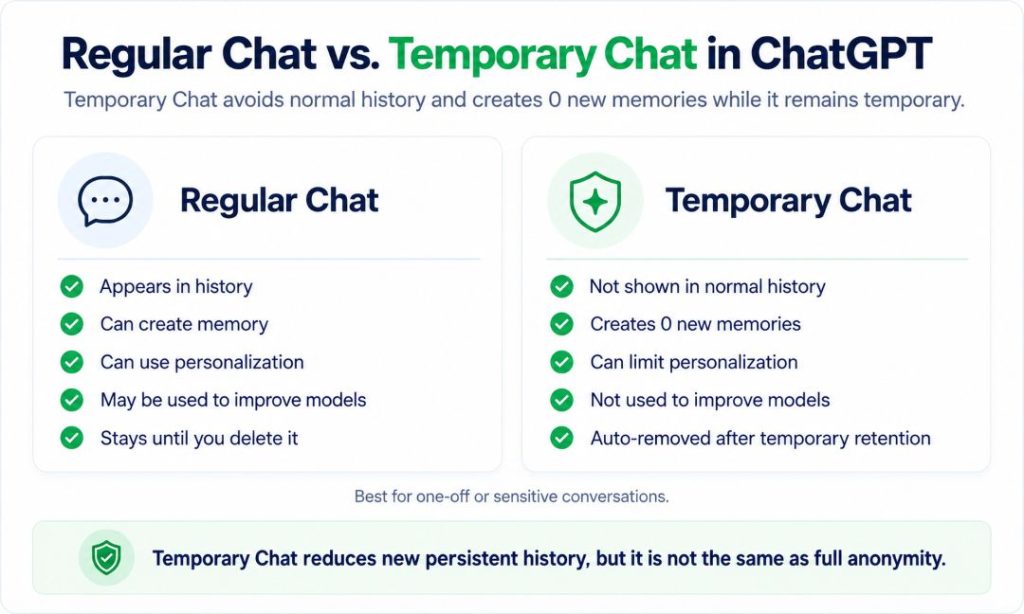
The infographic compares Regular Chat and Temporary Chat across five areas: visible history, memory creation, personalization, model training, and retention. It highlights 0 new memories and a 30-day automatic-retention window for Temporary Chat. Regular chats can remain until deleted.
What Does ChatGPT’s 30-Day Deletion Window Really Mean?
The standard deletion window is not a recovery period. The Chat and File Retention Policies allow limited longer retention for security or legal obligations.
Day 0 is when the item disappears from your account. The action then triggers a 30-day backend deletion process. Some information may have already been de-identified, while limited residual data can remain where an exception applies.
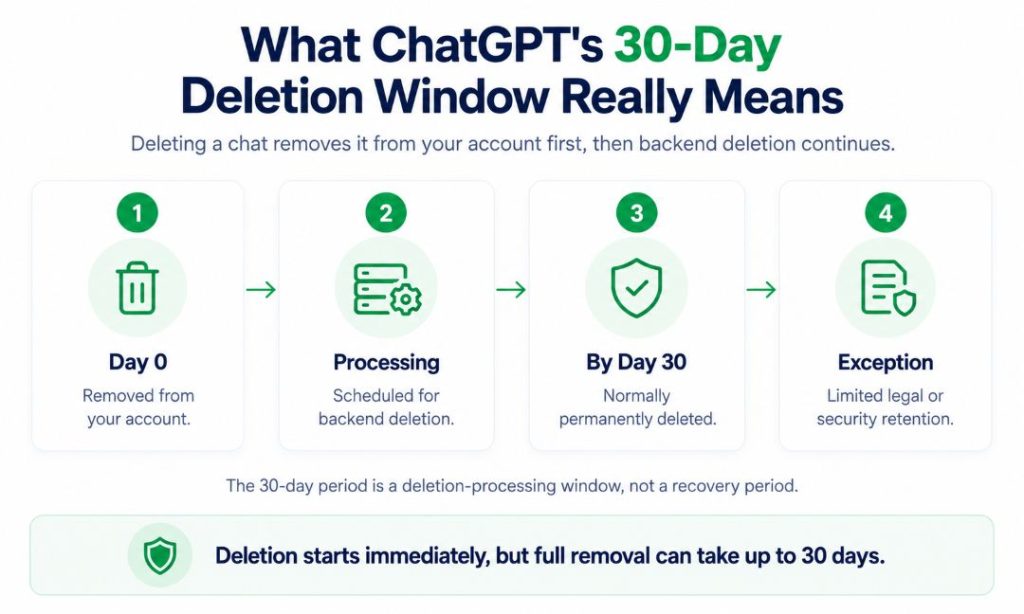
The infographic shows four stages: Day 0 removal, backend deletion processing, the end of the standard deletion window, and limited legal or security retention. A fifth callout makes clear that this is a deletion-processing window, not a recovery period.
Privacy Portal vs. the Delete Button: When Should You Use Each?
For routine ChatGPT privacy cleanup, in-app controls are faster. The OpenAI Privacy Portal is better suited to account-level privacy requests, formal deletion requests, or situations where you cannot use the normal account controls.
| User Goal | Best Route | Identity Verification Needed? | Scope | Typical Use Case |
| Delete one chat | In-app | No, if signed in | Specific object | Remove transcript |
| Delete memory | In-app | No, if signed in | Personalization | Remove remembered information |
| Export data | In-app or Privacy Portal | Depends | Account data | Keep a copy |
| Delete account | In-app or Privacy Portal | Yes | Entire account | Permanent closure |
| Formal erasure request | Privacy Portal | Depends | Privacy request | Exercise legal rights |
The Privacy Portal lets consumers request data downloads, training opt-outs, account deletion, GPT deletion, or removal of personal data from responses, with verification where required.
What Happens to Billing and Your Subscription If You Delete Data or Your Account?
Deleting chats, memory, files, or projects does not cancel a paid plan. If you delete your ChatGPT account, subscriptions billed directly by ChatGPT are canceled with the account, while Apple and Google Play subscriptions may need to be managed through the relevant store.
If you have ChatGPT Plus and only want to stop charges, cancel the subscription instead of deleting the account.
How to Permanently Delete Your ChatGPT Account
Account deletion is permanent. The Deleting Your ChatGPT Account guide gives this web flow:
- Sign in and open your account menu.
- Select Settings.
- Open Account.
- Select Delete next to Delete account.
- Enter the requested identifier and confirmation text.
- Confirm permanent deletion.
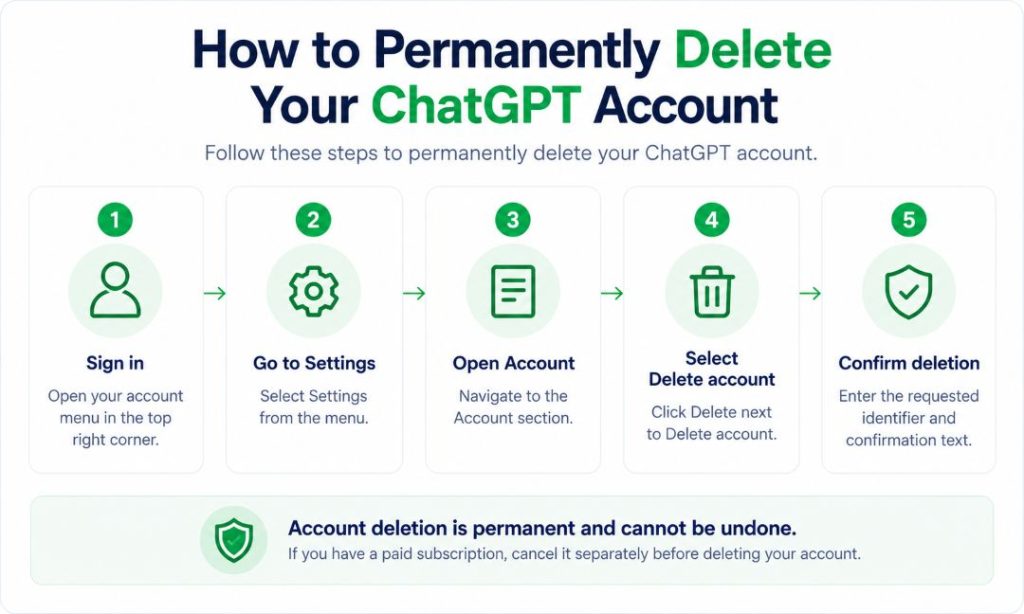
The process includes signing in, opening Settings, selecting Delete account, and confirming the irreversible deletion. Depending on the interface, the account control may appear as an icon in the top right corner. Managed workspaces use organization-controlled procedures.
Deleting the account does not remove your personal data from the Internet if it already appears on people-search or data broker sites. If you want to check where those details are still exposed online, ClearNym can help identify records and submit removal requests across 262+ covered sites.
How to Verify That Your ChatGPT Data Cleanup Actually Worked
A blank sidebar is not enough. Verify each layer:
- Confirm deleted chats are gone from normal history.
- Check the archive for anything that still needs removal.
- Review the Memory summary, then ask ChatGPT whether it still remembers any specific personal detail you wanted removed.
- Remove source chats that still contain old personal details.
- Delete PDFs, images, and other Library files.
- Review projects for retained chats, files, and instructions.
- Revoke shared links and test important URLs while signed out.
- Remove personal details from Custom Instructions.
- Disconnect apps and review source-account permissions.
- Check training preferences before future chats.
If the information appears again, check whether it is coming from another retained chat, file, project, instruction, memory source, or connected app.
Key Takeaways
- Delete rather than archive when permanent removal is the goal.
- Export important material before destructive actions.
- Treat chat deletion and AI memory cleanup as separate tasks.
- Review Library files, projects, shared links, and custom instructions independently.
- Disconnect apps when you no longer want future access to external sources.
- Use Temporary Chat for conversations you do not want added to regular history.
The safest approach is to check every layer once and verify the result.
FAQ
No. ChatGPT does not currently provide a standard date-range deletion filter for ordinary chats. Delete selected conversations individually, or use the bulk control when you intend to remove the full available history.
Yes. OpenAI may deny or limit a deletion request if it cannot verify your identity or if applicable law permits or requires certain information to be retained.
Generally, yes. Deleting a Voice conversation also schedules associated stored audio or video clips for deletion, subject to applicable safety, security, legal, or prior de-identification exceptions.
Possibly. Managed-workspace administrators may have access, export, audit, or retention capabilities under organization settings and applicable agreements. Your deletion action may not remove every record retained by the organization.
Deletion applies at the account level. Another device may briefly display a cached copy until it refreshes or synchronizes, after which the conversation should disappear from normal ChatGPT history.
References
- OpenAI Help Center, “Chat and File Retention Policies in ChatGPT.” https://help.openai.com/en/articles/8983778
- OpenAI Help Center, “Memory FAQ.” https://help.openai.com/en/articles/8590148-memory-faq
- OpenAI Help Center, “How to Delete and Archive Chats in ChatGPT.” https://help.openai.com/en/articles/8809935-how-to-delete-and-archive-chats-in-chatgpt
- OpenAI Help Center, “Exporting Your ChatGPT History and Data.” https://help.openai.com/en/articles/7260999-how-do-i-export-my-chatgpthistory-and-data
- OpenAI Help Center, “How Can I Delete a Conversation in the ChatGPT iOS App?” https://help.openai.com/en/articles/8980316
- OpenAI Help Center, “How Can I Delete a Chat Conversation in the ChatGPT Android App?” https://help.openai.com/en/articles/8167835-how-can-i-delete-a-chat-conversation-in-the-chatgpt-android-app
- OpenAI Help Center, “File Storage and Library in ChatGPT.” https://help.openai.com/en/articles/20001052-library-for-chatgpt
- OpenAI Help Center, “Projects in ChatGPT.” https://help.openai.com/en/articles/10169521-projects-in-chatgpt
- OpenAI Help Center, “ChatGPT Shared Links.” https://help.openai.com/en/articles/7925741-chatgpt-shared-links-faq
- OpenAI Help Center, “Connecting and Managing App Accounts in ChatGPT.” https://help.openai.com/en/articles/20001494-connecting-and-managing-app-accounts-in-chatgpt
- OpenAI Help Center, “Data Controls FAQ.” https://help.openai.com/en/articles/7730893-how-chatgpt-uses-browser-history-and-data
- OpenAI Help Center, “Temporary Chat FAQ.” https://help.openai.com/en/articles/8914046-temporary-chat-faq
- OpenAI Help Center, “Deleting Your ChatGPT Account.” https://help.openai.com/en/articles/6378407
- OpenAI, “Privacy Portal.” https://privacy.openai.com/
- ClearNym, “About ClearNym.” https://clearnym.com/about

Posted by Ava J. Mercer