Opt Out Guides
Gemini Opt Out Guide
Privacy Writer
A. J. MercerAva J. Mercer
Updated
Read
5 min
Gemini is an AI assistant that can help you write and organize, but chats and settings can include sensitive details. That matters because exposure of a name, address, or phone number can raise privacy risk if something is saved or shared by mistake. Gemini typically responds using what you type and, depending on settings, signals from Google products you connect. This guide gives quick steps, screenshot tips, official links, and timelines so you can limit stored activity and review what is kept.
How to opt out of Gemini
Open the Gemini Apps Privacy Hub or Gemini apps activity, enter the email or phone tied to your account when prompted, and confirm with a code or link. Changes are usually shown within three days across Google, so follow these steps and save proof.
Checklist:
- Open the official opt-out form
- Open Chrome and sign into Google
- Access Search Labs
- Locate and turn off Gemini settings
- Save the confirmation email
- Set a reminder to repeat the request
Find out if your private details were exposed

2,865,794 have already used our service
Gemini – Quick Facts
| Parameter | Value |
| Domain | gemini.google.com |
| Data Types | chats, integration settings, and other personal data you provide |
| Opt-out Methods | in-product settings/account activity controls |
| Identity Verification | code via email/SMS or confirmation email |
| Typical Response Time | up to 3 days |
| Re-listing Risk | medium |
About Gemini
Gemini is Google’s AI assistant and an AI tool that can draft text, summarize, and create documents based on descriptions. It can connect to products and services, including Gmail accounts, when smart features are opt-in and turned off by default in some setups. If Keep Activity is off, chats won’t appear in activity tracking and won’t be used to train AI models unless you send feedback, though chats may be kept for 72 hours for safety and to improve Google services.
Common data you may find:
- Chat text (one prompt and replies)
- Account details (profile name, language)
- Gemini app toggles for integrations
- App permissions you enable in Google apps
- Snippets of Gmail content you paste into a chat
- Data from images you upload
- Preferences that use your saved home
- Location references, such as saved home or work
- Requests to summarize or extract text from files
Step-by-Step Guide
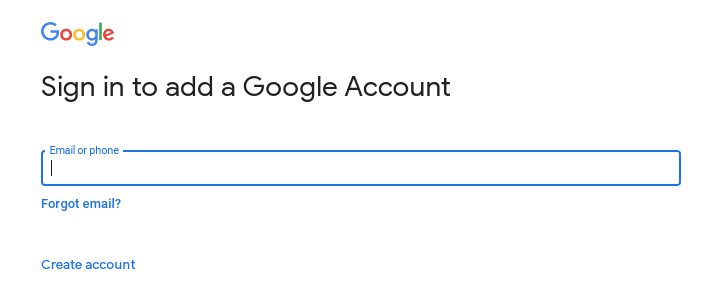
Open Chrome and sign into Google
On a desktop, open the version of Chrome you normally use and sign in once. Make sure it’s the same account you use in the Gemini app. From the profile menu, open “Settings” or “Activity” so you can manage the controls and remove the necessary data. If you take a screenshot, redact your email address and any sensitive on-screen details. Tip: if you have multiple profiles, sign out of the ones you won’t use, then reload the page so the correct account is active.
Access Search Labs
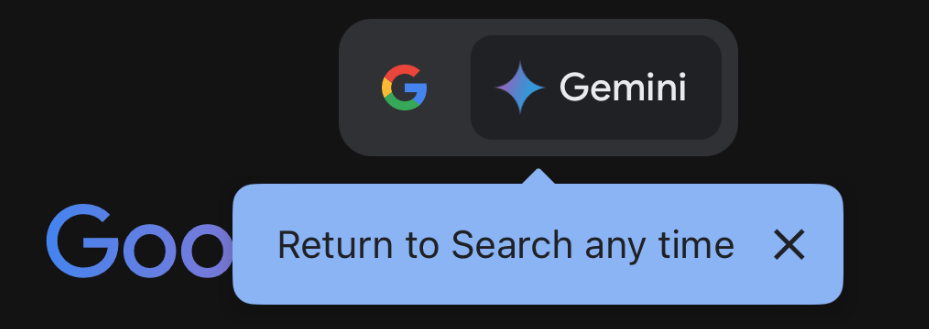
Open Search Labs (if available) and review any Gemini-related toggles. This is where some AI features for search experiments are managed, and it may reference features in Google Workspace. If you record your steps, blur your searches and identifiers. Tip: After changing a toggle, refresh once and confirm it stayed changed before you close the tab.
Review app connections
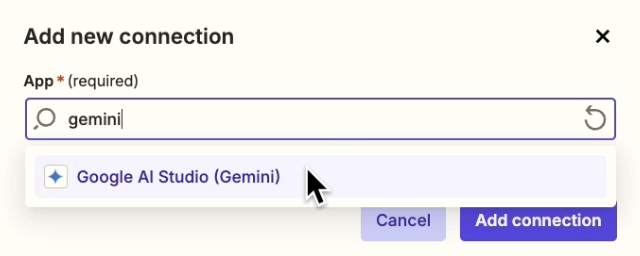
In the Gemini app, open the profile menu, then “Apps,” to manage integrations. Here you can disable links to connected apps like Google Maps, Google Photos, and Google Calendar, and you can choose whether to allow Google connections for other services. Tip: Capture only the toggle area in screenshots, and blur personal data in the surrounding UI.
Locate and turn off Gemini settings
Open the Gemini apps activity and select Turn off. If you want the strongest limit, turn off Gemini apps activity and confirm the choice so new chats are not utilized for AI training and aren’t saved in the visible log; this also reduces data to train future AI models.
Track confirmation & timeline
After changes, look for an on-screen confirmation and check Gmail for a verification message. Save it, then recheck after three days. If you also use Google Workspace smart features, confirm the boxes stayed unchecked after you sign in on a new Android device. Tip: If no email arrives, check Spam and Promotions before you resend.
Timelines, Verification & What to Expect
Most pages update right away, but account syncing can still take X–Y days. Verification may be a one-time code, a confirmation link, or a “saved” banner, depending on the setting. If nothing changes after Y days, revisit the same page, confirm you’re signed into the correct account, and submit the change one more time. For Gmail, check smart feature settings because there are separate boxes for Smart features in Google Workspace and Smart features in other Google products.
Edge Cases & Troubleshooting
- No access to the original email/phone: Use account recovery, then try again from the same screens.
- “Record not found”: Switch profiles; you may be in the wrong account or region.
- CAPTCHA or submission errors: Clear cookies, try another network, and retry later.
- Verification code not arriving: Wait a few minutes, then check Spam in Gmail before requesting a new code.
- Regional limits (EU/UK/CA): If a page blocks you, rely on in-product controls rather than a web form.
- Account deletion vs settings confusion: To turn off Gemini features, you don’t need to delete your account.
- Turn off Gemini in Gmail: In Gmail settings, uncheck “Smart features in Gmail, Chat, and Meet,” then adjust Workspace smart features so the other boxes are also off.
- Android assistant: If you want to turn off Gemini on Android, you can disable Gemini on Android in system settings; uninstall may not be available on every Android device.
- Billing: If you pay for extras, cancel from your billing page, then recheck settings.
Will my data reappear?
Some switches can flip back after updates, a new sign-in, or a change across Google Workspace, so reappearance is possible even after you turn off smart features. Reduce repeats by saving confirmations, setting a 3–6 month reminder, and checking again after major updates. If you want to opt out of AI broadly, review both Gemini apps’ activity and smart features, because each affects how data is used for personalization. Google doesn’t promise permanence, so treat this as a routine review.
Related removals
- Incogni
- DeleteMe
- OneRep
- Optery
- Kanary
- PrivacyHawk
- Aura
- Privacy Bee
Manual vs Assisted Removal
Manual:
- Pros: control each setting and can manually turn only what you need to turn; keep a record of confirmations for activity and smart features.
- Cons: rechecks after updates take time; may need to turn off Gemini more than once (web and phone).
Assisted:
- Pros: faster setup and step tracking with recurring checks; help with verification flow and a dashboard log.
- Cons: you still must confirm prompts yourself; coverage varies by account type and region.
“Excellent”
We remove your data for you - faster, verified, trackable.
Discover Which Sites Share Your Private Details—Instantly and Free.
2,865,794 have already used our service
FAQ
Receive expert privacy advice by email - 1-2 times per month, no fluff.
Share Article

Posted by Ava J. Mercer
Ava J. Mercer is a privacy writer at ClearNym focused on data privacy, data broker exposure, and practical privacy tips. Her opt-out guides are built on manual verification: Ava re-tests broker opt-out processes on live sites, confirms requirements and confirmation outcomes, and updates guidance when something changes. She writes with a simple goal - help readers take the next right step to reduce unwanted exposure and feel more in control of their personal data.
76 Articles